
Gadget LivGadget Liv
  • Galaxy Phones
  • Galaxy Watch
  • Samsung TV
  • One UI
Gadget LivGadget Liv
Search
  • Galaxy Phones
  • Galaxy Watch
  • Samsung TV
  • One UI
Follow US
  • Sitemap
  • About
  • Contact
  • Privacy Policy
  • Editorial Policy
Galaxy Phones

Stuck with the roaming clock on Samsung Galaxy? Here’s the simple fix

Rahul Rai
Last updated: November 30, 2025
How to Turn Off Samsung’s Roaming Clock

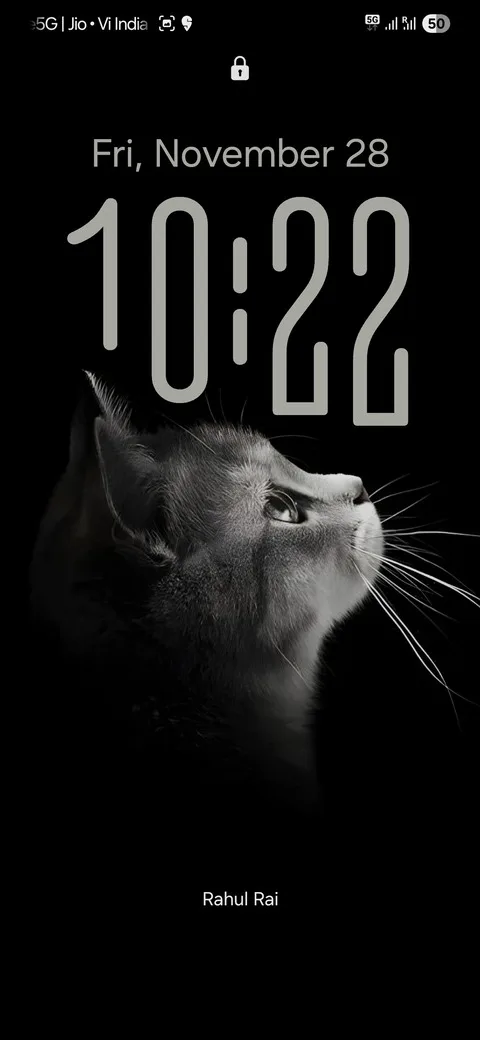
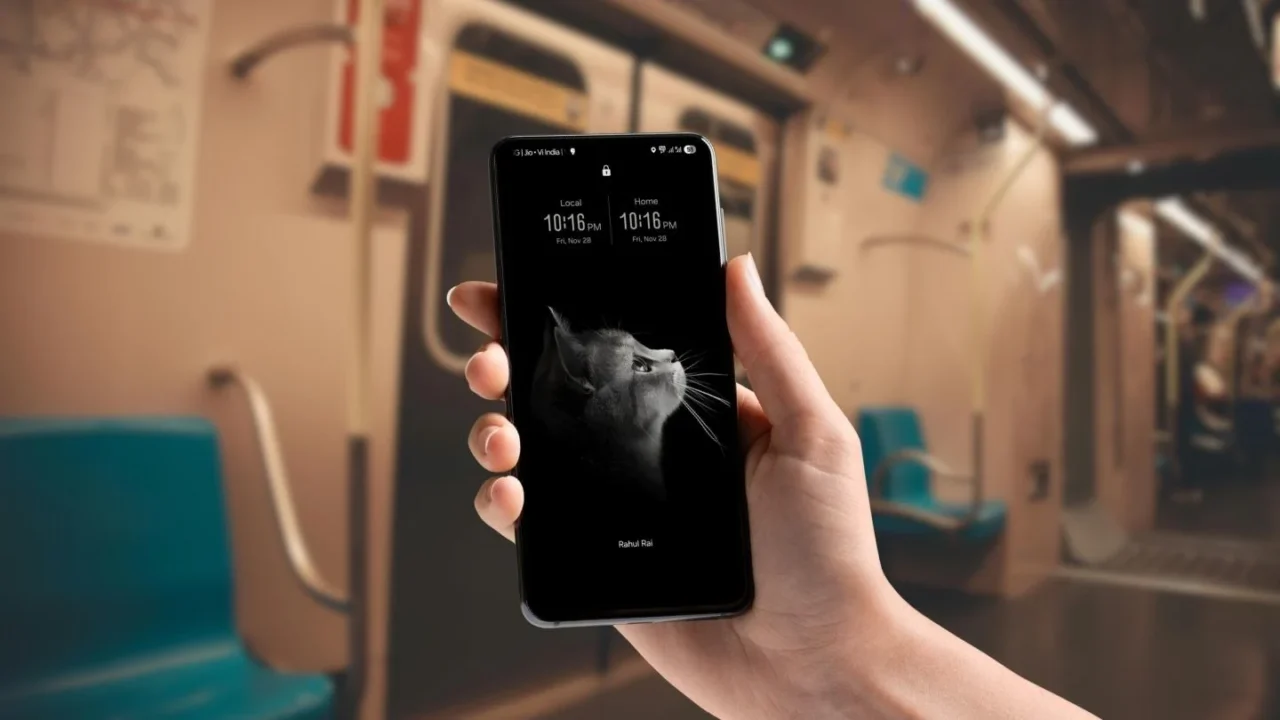
One morning, while I was traveling to another state, I unlocked my Samsung phone and noticed that my lock screen clock style had changed on its own. When I tried switching it back, the phone showed an error: Can’t edit clock style while using roaming clock.
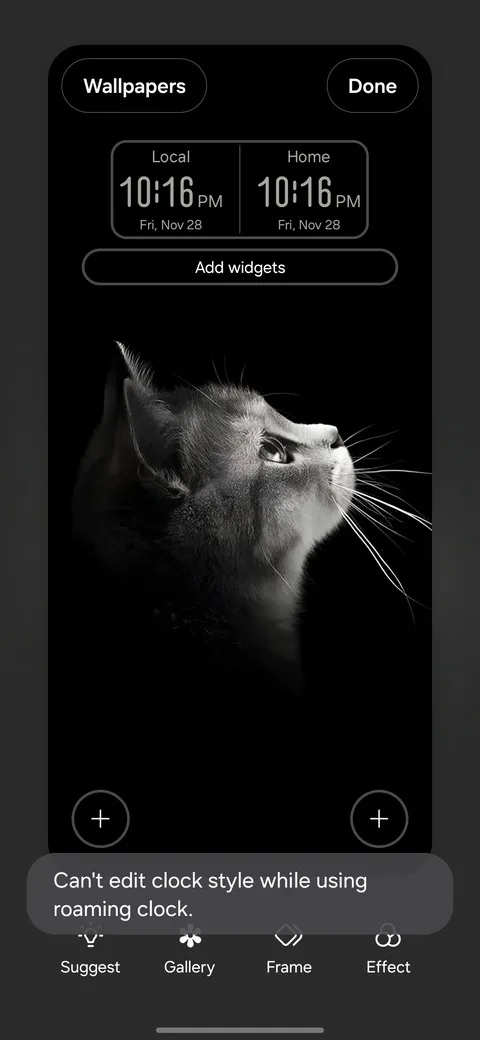
Can’t edit clock style while using roaming clock

I soon figured out the error was happening because my phone was in a roaming area, but I still had no idea how to fix it. What made it even more frustrating is that the roaming clock was completely useless to me — India has only one time zone, so I was basically seeing the same time twice. If I were in a country like the U.S., which has four primary time zones, it would at least make some sense.

Anyway, I just wanted my original clock back. So I started digging through the Settings app and finally found the culprit. It wasn’t hard at all — just go to Settings > Lock screen and AOD and toggle off the Roaming clock option.
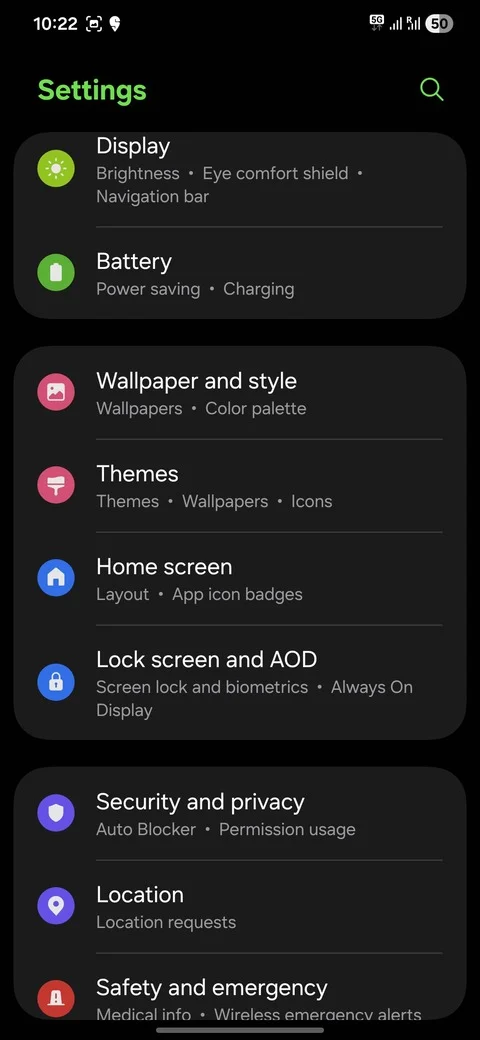
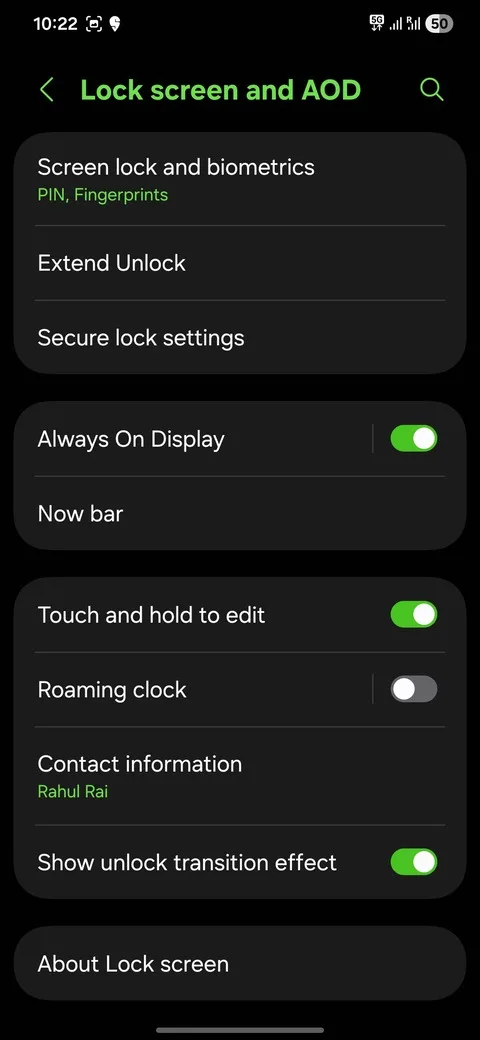
Samsung lock screen settings app
disable roaming clock on samsung galaxy
roaming clock disabled on samsung

That’s it. My previous clock style instantly returned, and I was able to change it normally again.

What is a roaming clock, and why can’t you customize it

Samsung automatically switches to a roaming clock when it detects that you’re in a different time zone. It shows two clocks:

  • one for your home time, and
  • one for your local (roaming) time.

When this feature kicks in, Samsung prioritizes the dual-clock layout, which forces a fixed style to fit both clocks. Because of that, the phone temporarily locks your clock style settings so you can’t customize them.

Google Preferred Source Badge
TAGGED:ClockSamsung GalaxyTroubleshoot
Share This Article
Facebook Whatsapp Whatsapp Reddit Telegram
ByRahul Rai
Follow:
Rahul Rai is a tech writer with over 5 years of experience covering smartphones, software, and consumer electronics. After starting Gadget Liv in 2019, he went on to write evergreen content at TechWiser before returning to relaunch Gadget Liv in 2025 with a fresh focus on Samsung news and One UI coverage. Rahul is currently pursuing a BCA degree from Manipal University, strengthening his foundation in computer science. His writing is all about clarity, accuracy, and helping Galaxy users stay informed without the fluff. Currently, he owns: Galaxy S23, Galaxy Watch 4, and Samsung TV.
Leave a Comment Leave a Comment

Leave a Reply Cancel reply

Your email address will not be published. Required fields are marked *


New Stories

After a month of using Phone Link with a Galaxy phone, these 3 features stood out to me
Upcoming Galaxy S26 Ultra display could make privacy screen protectors obsolete
Why the Now Bar is weirdly placed on some Galaxy phones and how to fix it
I tried an iOS-style depth effect on my Galaxy phone, and it looks surprisingly good
I didn’t think I’d ever use Galaxy-to-Windows clipboard sync — but I do now
One UI 8.5 is quietly being tested on these Galaxy devices
Samsung’s new monochrome icons look impressive — until I actually used them
Follow US
Gadget Liv (2019 - 2026)
  • Sitemap
  • About
  • Contact
  • Privacy Policy
  • Editorial Policy
Welcome Back!

Sign in to your account

Username or Email Address
Password


Lost your password?