

I’ve used Chrome as my primary browser for nearly a decade. Last year, I switched to Brave, thinking that would be the end of it. Then Samsung re-released Samsung Internet for Windows, and curiosity pushed me to try it on my PC.
After using it on Windows for over a month, here is a clear breakdown of what I genuinely liked, what did not work for me, and what still needs improvement.
What worked well for me
These are the features that had a real, practical impact on how I browse every day.
1. The sidebar quietly fixes my tab addiction
The very first thing I noticed when I opened Samsung Internet on my laptop was the sidebar on the right. It comes packed with genuinely useful tools.
- Sync Devices shows a mobile-style view of Samsung Internet and lists all your open tabs synced across devices.
- Calendar displays events synced from your Samsung and Google accounts. You can also create new events here, and they sync automatically.
- The Bookmark Tool lets you pin your favorite websites directly to the sidebar for quick access.
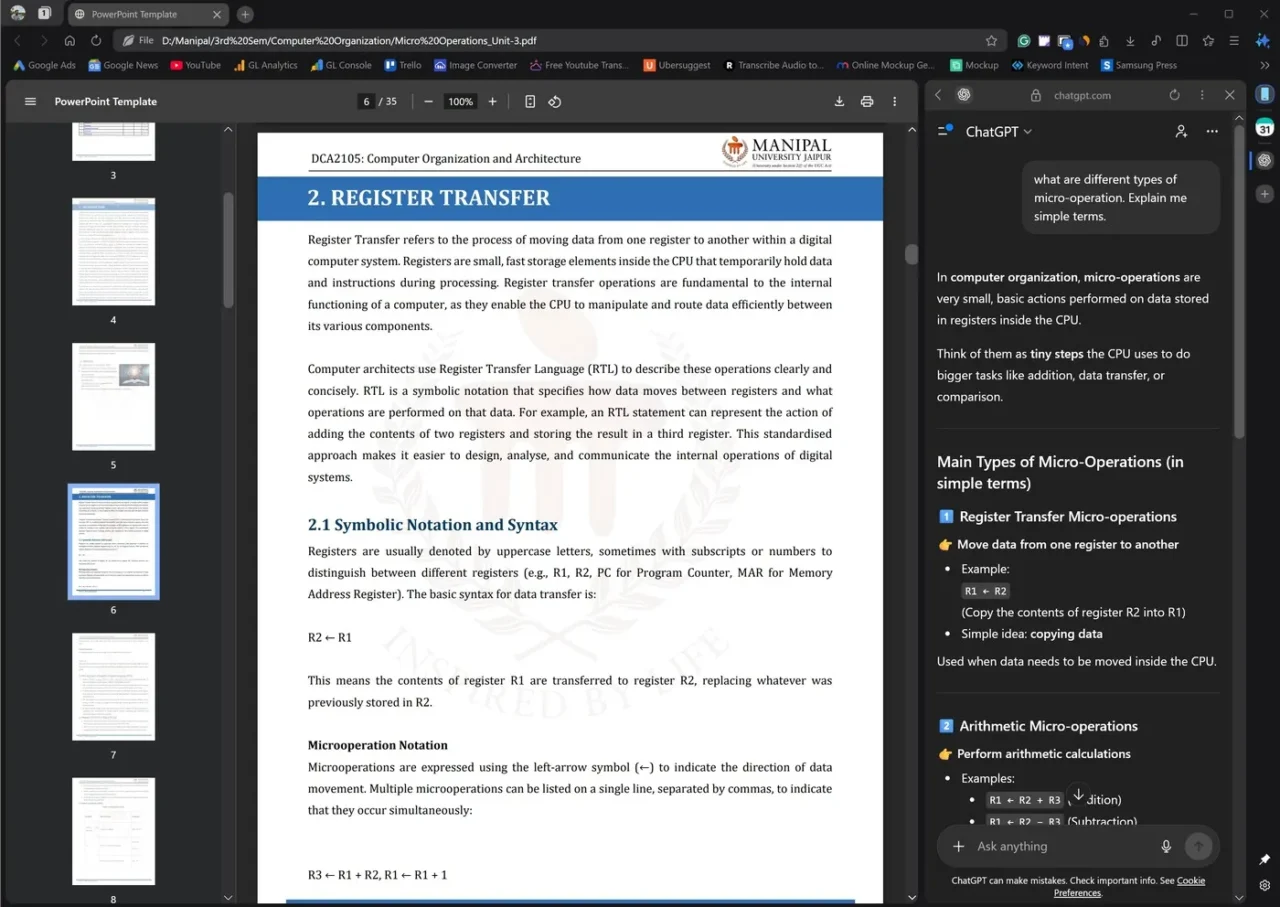
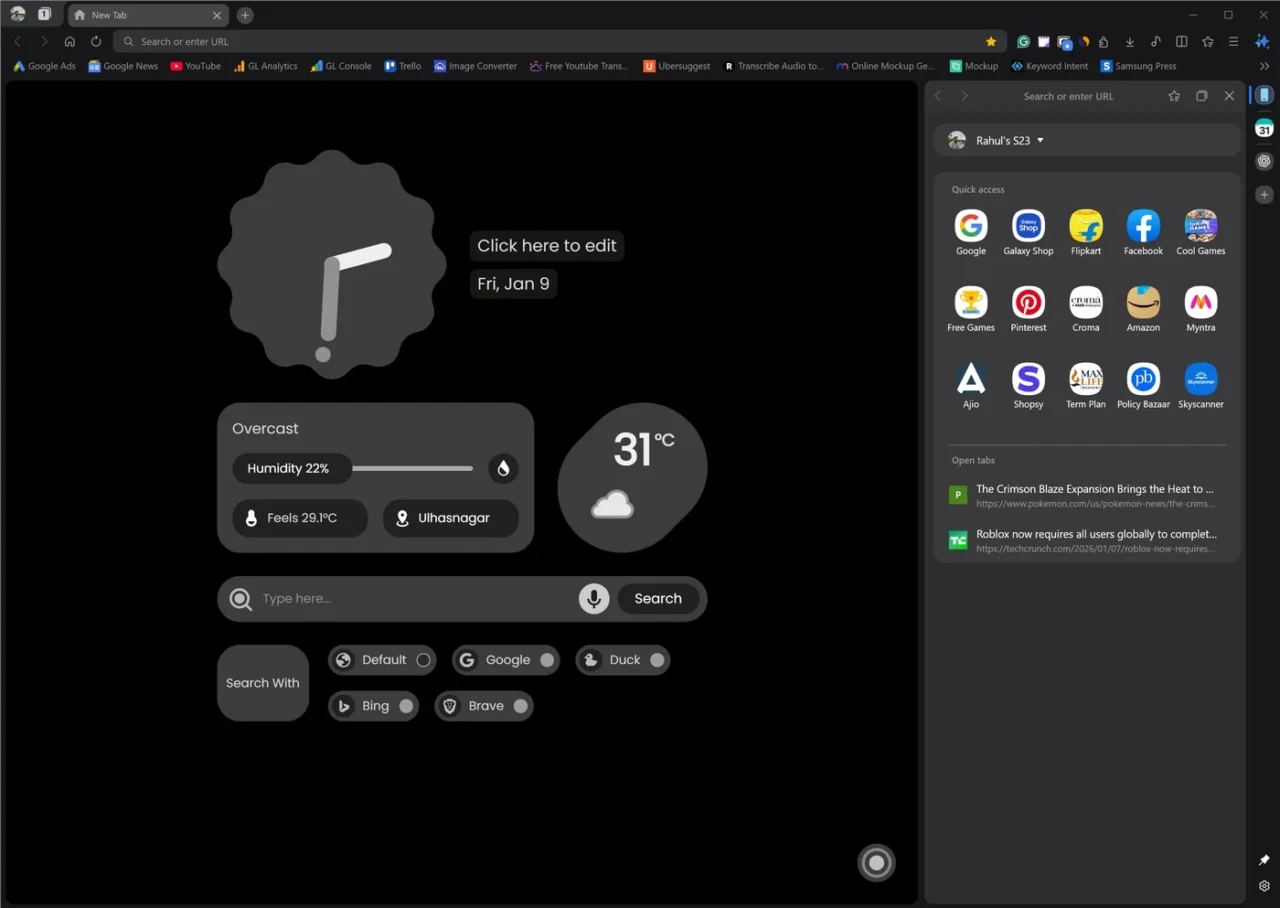
Out of these, the bookmark tool is what I use the most. As a writer and a student, I constantly end up with dozens of tabs and multiple browser windows open. Most of the time, I either forget to close them or simply ignore the mess.
Once I added my frequently used websites to the sidebar, my habit of opening unnecessary new tabs dropped noticeably. Whether it is a quick Google search or opening ChatGPT, everything is just one click away.
It is not only about fewer tabs. The sidebar quietly reduces friction in everyday browsing, something I only realized after using it for a while. If you have the same tab-hoarding habit as me, this feature alone can change how cluttered your browser feels.
2. Reliable cross-device sync
After exploring the sidebar, the next stop was sync settings. One of the most important factors for any modern browser is how well it syncs data across platforms. Samsung Internet gets this right.
After signing in with my Samsung account, it immediately started syncing bookmarks, history, open tabs, Samsung Pass data, extensions, and more from my other Samsung devices.
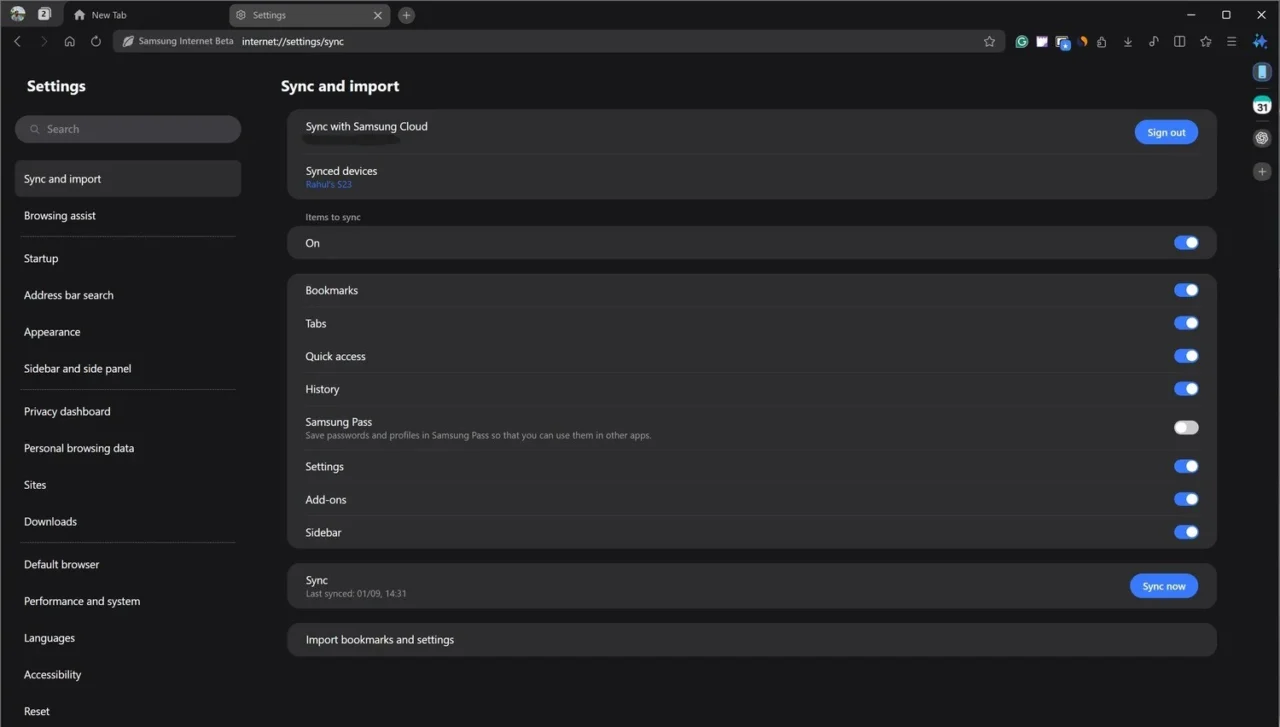
If you are wondering whether you can import bookmarks from another desktop browser, the answer is yes. However, the options are limited to Chrome, Edge, and the legendary Internet Explorer 😉.
3. Built-in privacy and ad blocking
Samsung Internet became my default browser on Windows 11 almost instantly, but it took me a couple of days to notice that I wasn’t seeing ads anywhere. I later realized I had enabled the built-in ad blocker during the initial setup, which saved me from installing seperate ad-blocker extension.
Samsung also allows you to disable ad blocking for specific websites, which is great if you want to support creators or independent sites.
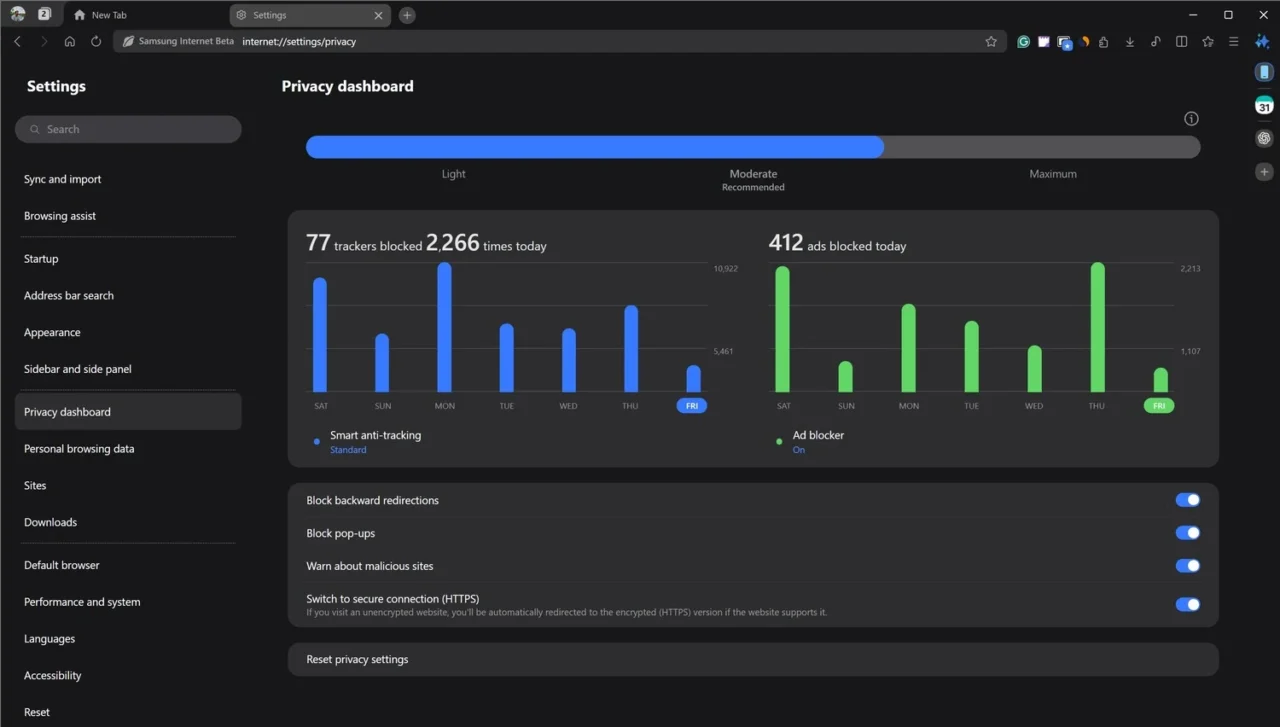
While digging through the settings, I checked the privacy dashboard and was honestly shocked by how many trackers were blocked in a single day. It is a clear reminder of how aggressively our data is collected online. All key privacy features, such as anti-tracking, pop-up blocking, backward redirection blocking, and malicious site warnings, are enabled by default. Even if you never touch the settings, you are still reasonably protected.
4. Password-protected Secret Mode
Let us be honest. We all use private browsing for different reasons, whether it is keeping searches separate, avoiding saved history, or just browsing quietly.
The problem is that it is easy to leave a private tab open in the background. If that happens, you probably do not want someone else stumbling into it. Samsung Internet solves this with a password-protected Secret Mode.
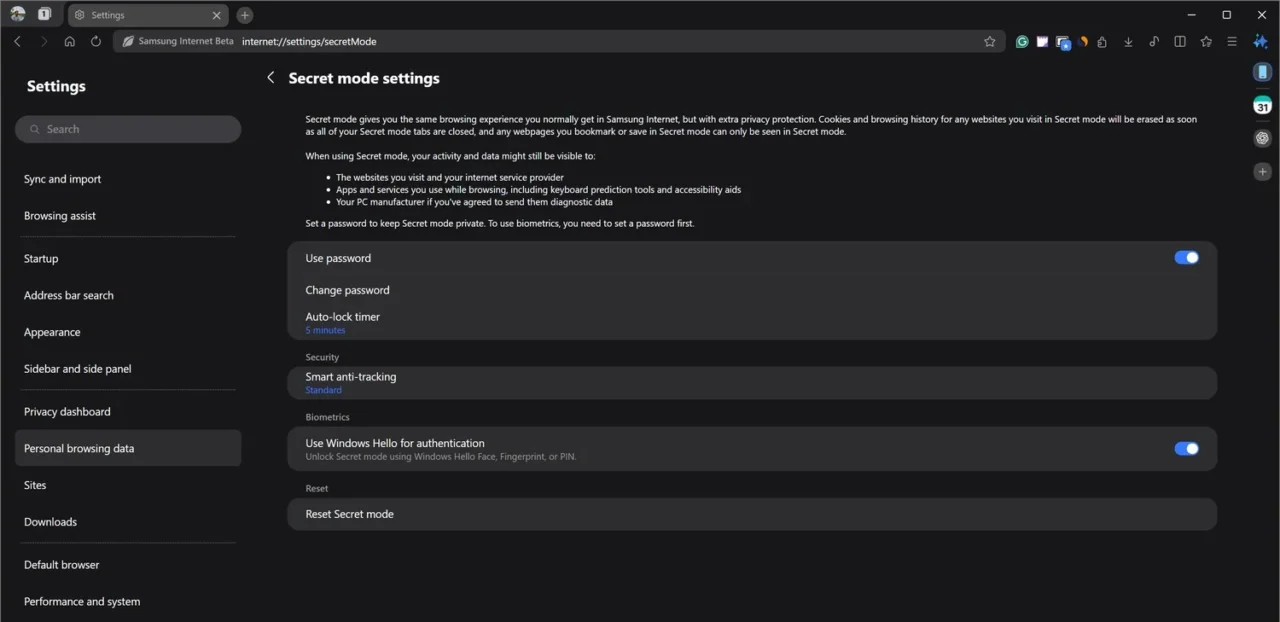
You can also unlock Secret Mode using Windows Hello with your face, fingerprint, or PIN. There’s also an auto-lock timer that you can customize. All these options are located under Settings > Personal browsing data > Secret mode settings.
I genuinely wish other desktop browsers would adopt a similar approach. It adds a meaningful layer of privacy rather than treating private browsing as just another window.
What didn’t work for me
While the browser gets many things right, a few limitations stood out during regular use. These are not deal breakers for everyone, but they did affect my workflow.
1. Extensions don’t work in Secret Mode
While I appreciate the added security of Secret Mode, it has also become slightly frustrating in daily use. The main issue is that extensions are completely disabled.
In browsers like Chrome, Brave, or Edge, you can choose which extensions are allowed to run in incognito or private mode. Samsung Internet does not offer that flexibility.
Many users may not care about this, but there are real scenarios where extensions are useful in private browsing. This includes using a password manager to log into an alternate account, enabling a VPN extension to access region-restricted content, or, in my case, using Grammarly and certain SEO-related tools.
For now, I am living with this limitation, but I really hope Samsung adds extension support for Secret Mode in a future update.
2. Half-baked AI features
I was genuinely excited to see Galaxy AI integrated into Samsung Internet. Unfortunately, that excitement did not last long once I started using it.
Browsing Assist offers two AI-powered tools: Summarize and Translate.
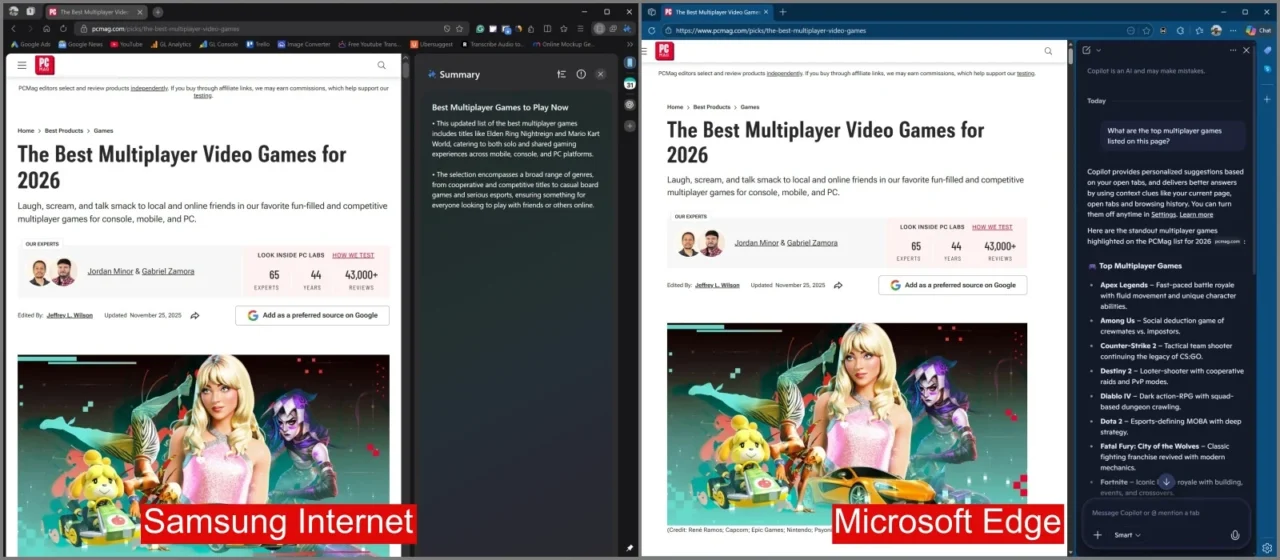
On paper, that sounds useful. In practice, the Summarize tool often produces vague results. When I tried summarizing articles like the best multiplayer games, I expected a clear list of titles. Instead, the summaries felt shallow and unhelpful.
In another example, the summary was slightly better, but when compared side by side with Microsoft Copilot in Edge, the difference was obvious.
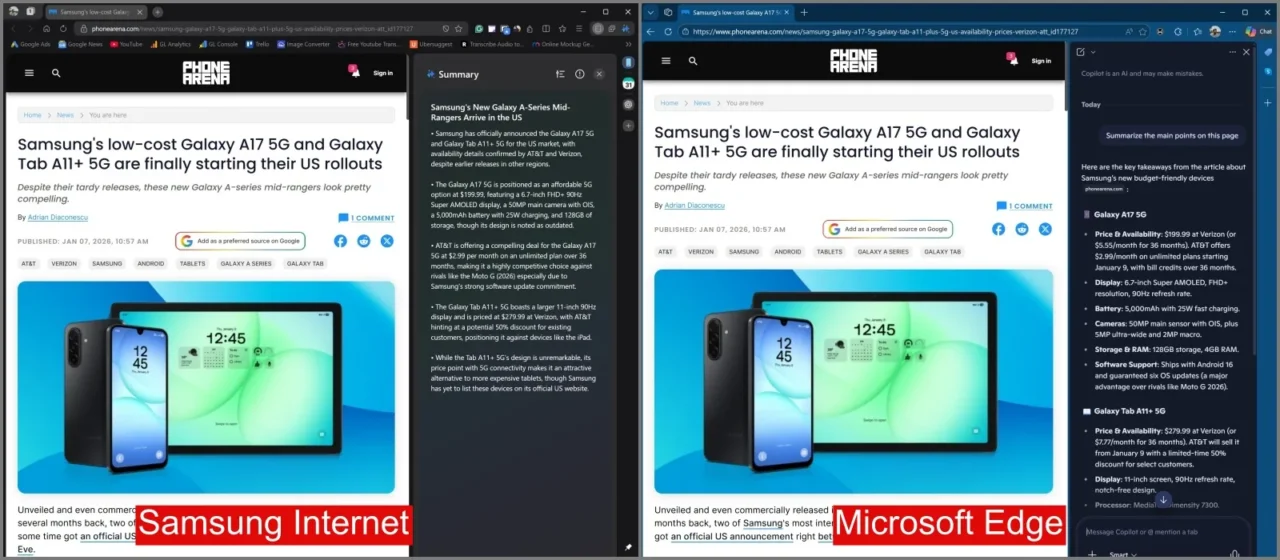
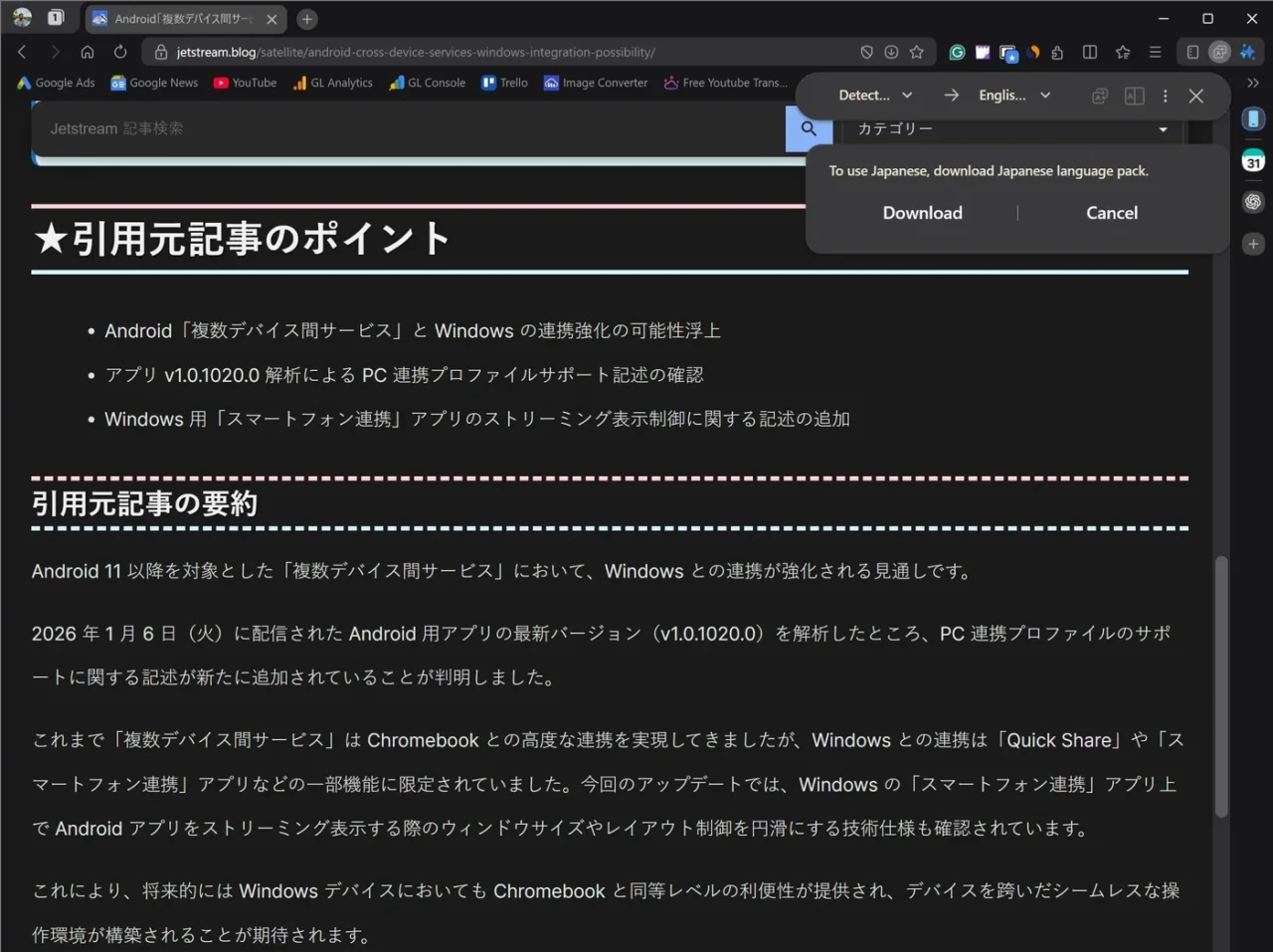
The Translate feature also feels unfinished. When I opened a Japanese article, instead of translating it instantly, Samsung Internet asked me to download language packs first. This kept happening across multiple non-English websites, which is not something I have experienced with Chrome or Brave.
To be fair, I rarely use translation features. The summarize tool, however, is something I rely on more often. Earlier, I used to paste articles into ChatGPT. After seeing the current state of Galaxy AI in Samsung Internet, it looks like I will stick to that old habit for now.
Ironically, this experience made me appreciate how good Copilot works inside Edge. At this point, I am half worried that my next article might be titled something like, I stopped using Samsung Internet within a month for Edge.
3. Screenshot restrictions in Secret Mode
Another limitation of Secret Mode is screenshots. There are times when I need to capture part of a webpage while browsing privately. Samsung Internet blocks the Windows Snipping Tool and third-party screenshot apps in Secret Mode by default.
There is no option to change this behavior in the settings. The only workaround is using the browser’s built-in screen capture tool. It works, but it requires extra clicks every time. When a simple keyboard shortcut would do the job, this feels unnecessarily restrictive.
A few extra touches worth mentioning
Samsung Internet includes a few additional features that do not dramatically change the experience, but are still worth mentioning.
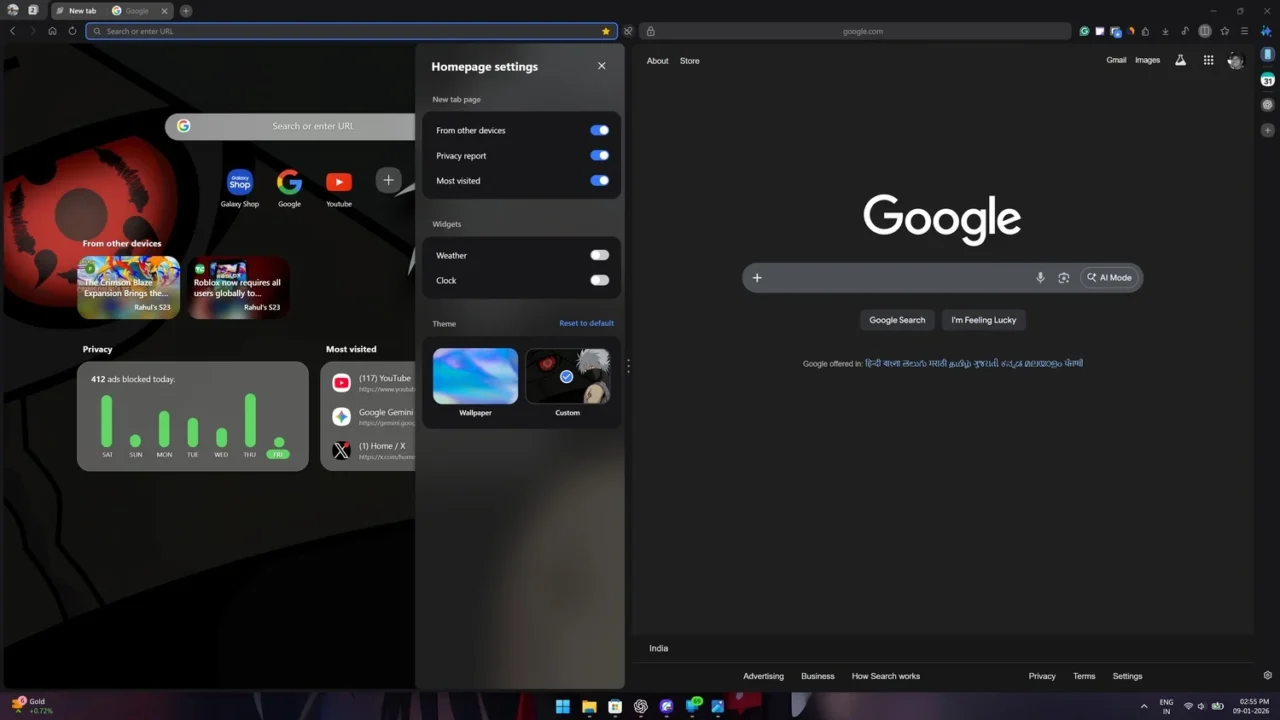
- Split View lets you browse two websites side by side or top and bottom.
- You can enable a dark theme manually or set it to switch automatically.
- The homepage can be customized with wallpapers and widgets like weather, clock, and a privacy dashboard.
- Inactive tabs can be put to sleep to free up memory and keep active tabs running smoothly.
The verdict
Samsung Internet on Windows surprised me more than I expected. What started as casual curiosity turned into a browser I now open every day without thinking about it. The sidebar alone has changed how cluttered my browsing used to be, and the cross-device sync works quietly in the background, exactly how it should.
That said, it is not without frustration. Secret Mode feels secure, but it is also restrictive in ways that power users will notice immediately. Galaxy AI, despite the hype, still feels like a work in progress and falls short of what competitors are already doing.
For now, Samsung Internet has earned its place in my daily workflow. As a beta product, it still has room to grow, and with future updates, new features, and continued refinements, it has the potential to become a strong, reliable desktop browser.