

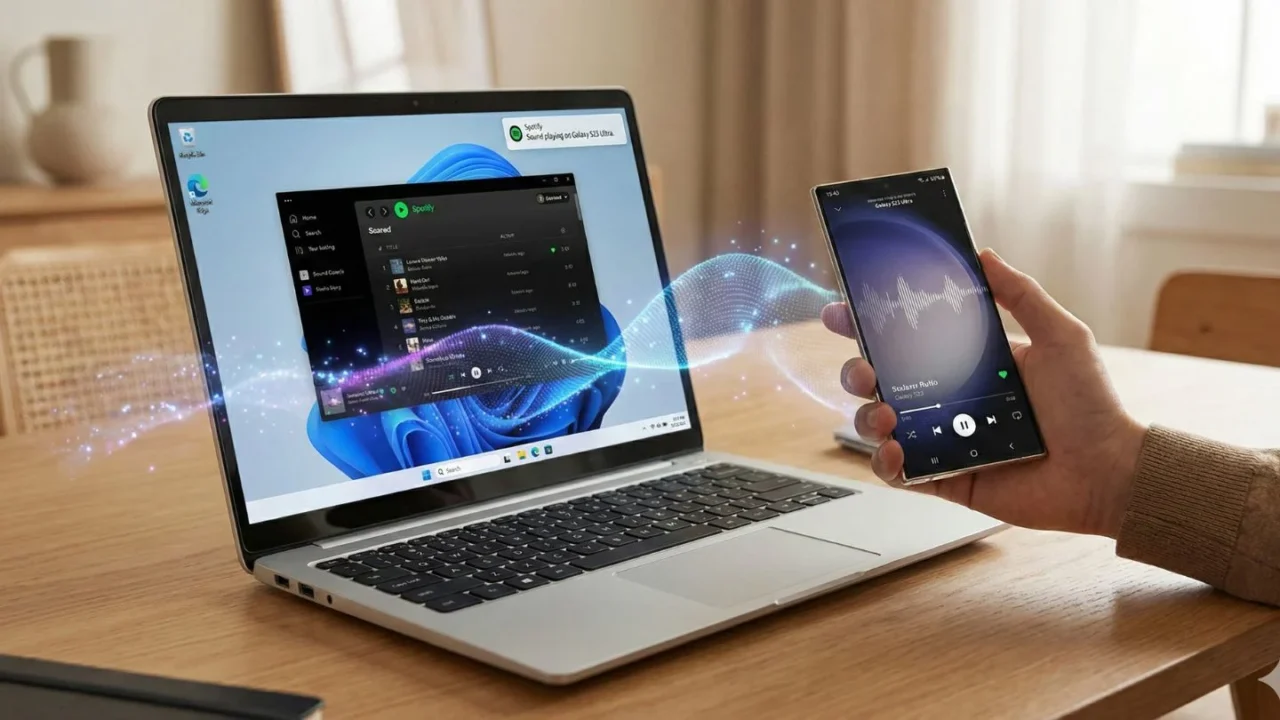
I’ve been using a Windows laptop for over a decade now, so I know the speakers aren’t impressive on most of them. It usually doesn’t bother me because my laptop stays connected to a monitor with built-in dual speakers.
But the moment I’m away from that setup — whether I’m working or studying on my bed or staying at someone else’s house — reality hits hard. The laptop’s sound output is so weak that I can barely hear anything on YouTube or Netflix.
To make things worse, one of the speakers has completely stopped working, adding even more frustration to an already annoying experience.
Yes, I do have the option to use my TWS earbuds, but just imagine having to look for them every time I want to play a video or listen to something throughout the day. Plus, that solution isn’t practical when I’m watching content with friends or family.
So what’s the solution I came up with? Well, it was right at my fingertips — my phone. I never thought I could use my Samsung Galaxy phone as a speaker for my laptop. In fact, you can use any Android phone as your laptop’s external speaker.
How to use your Samsung Phone as a laptop speaker
To do this, install a free app called AudioRelay on both your phone and laptop. It lets you stream your PC’s audio to your Android phone over Wi-Fi or USB tethering.
Method 1: Wireless (Wi-Fi)
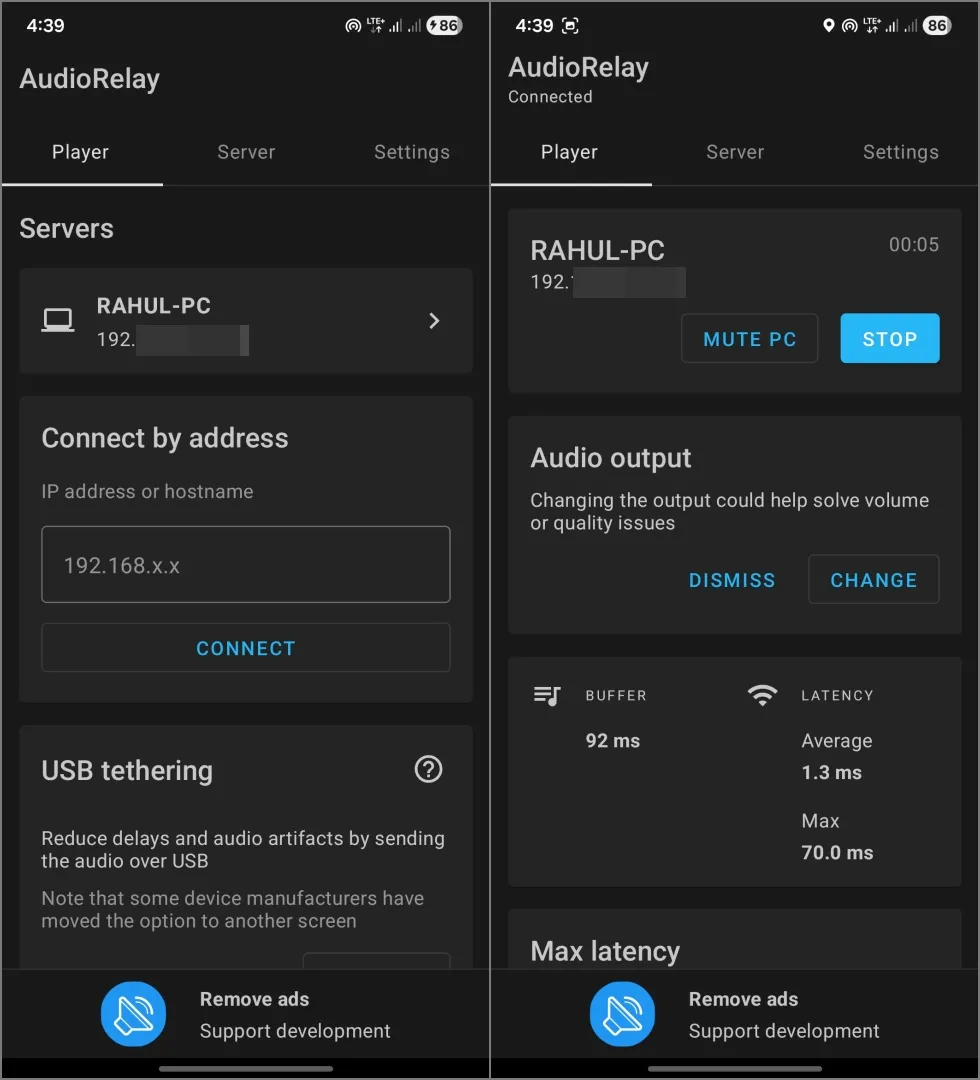
Once you’ve installed the app on both devices, follow these steps:
- Open the app on your phone and PC.
- Make sure both devices are connected to the same Wi-Fi network.
- Your PC will automatically appear in the Player tab on the mobile app. Tap on it to connect instantly.
- Play something on your PC to test the connection.
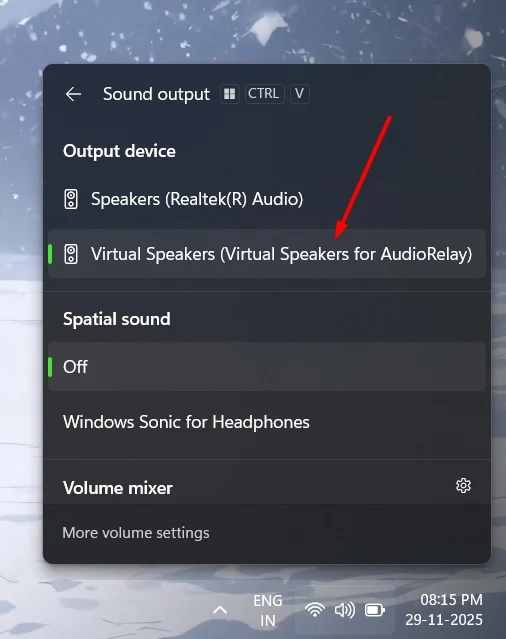
Tip: If audio is playing on both your laptop and phone, change your Windows sound output to Virtual Speakers for AudioRelay. Shortcut: Windows Key + Ctrl + V.
Method 2: Wired (USB Tethering)
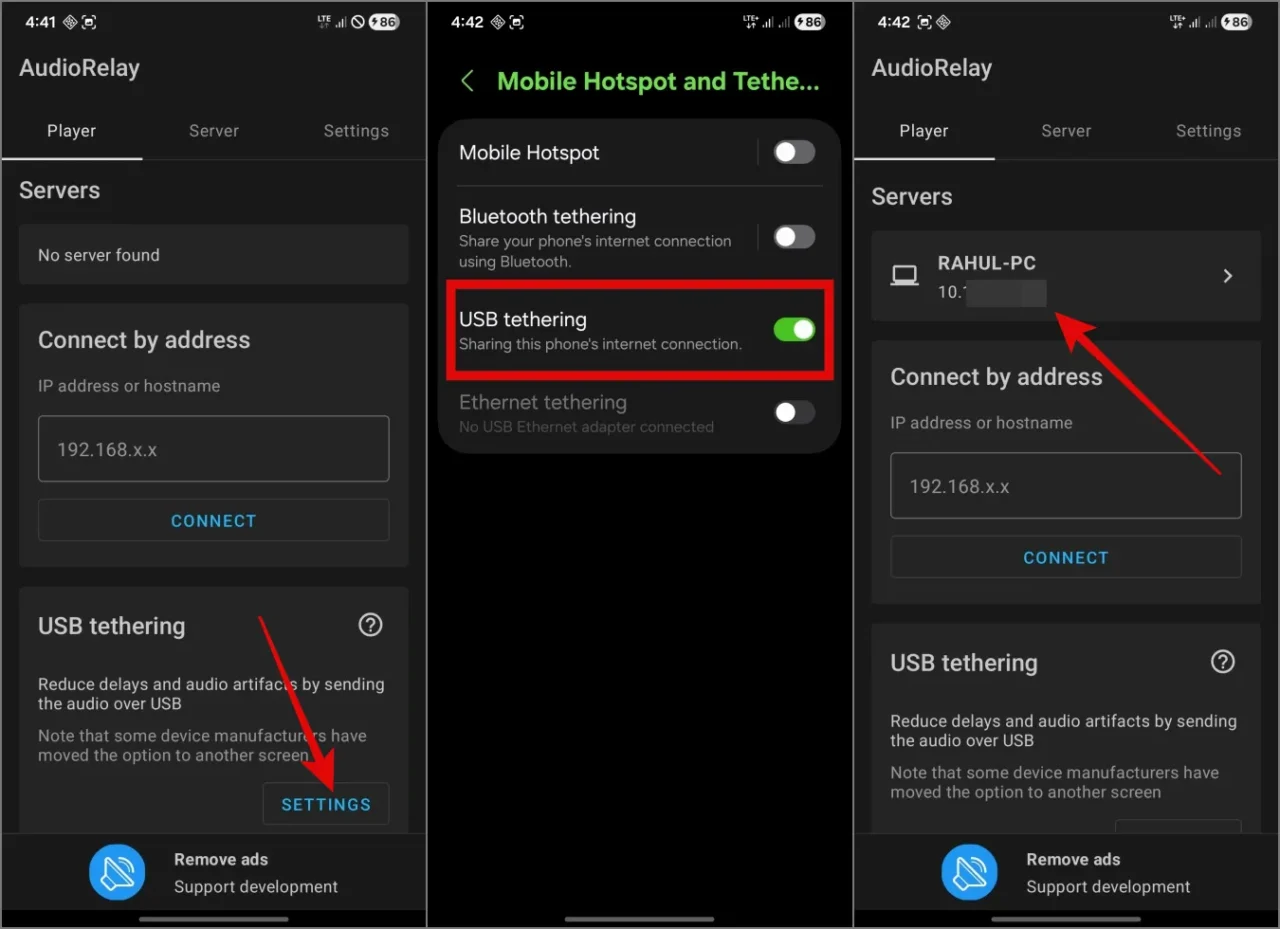
If the wireless method introduces too much latency, try the USB option instead:
- Connect your Samsung phone and laptop using a USB cable that supports data transfer.
- In the AudioRelay mobile app, go to the Player tab. Under the USB tethering section, tap Settings, then toggle on USB tethering.
- Return to the Player section — your laptop’s name should now appear.
- Tap on it, and your phone will start playing audio from your laptop.
Is this a permanent fix?
AudioRelay is great for getting quick relief from your laptop’s bizarre speaker issues, but it’s not a perfect long-term solution. It has a few drawbacks. For example, a weak Wi-Fi connection or a loose USB cable can cause audio problems such as packet loss, which simply means audio dropouts or artifacts. So if you’re planning to watch a movie or a long video, these interruptions can get a little irritating.
Nonetheless, I’d still say it’s better to deal with the occasional audio artifact from your phone’s speaker than to suffer through the underwhelming sound from your laptop.
I hope this guide helps you get the best possible audio quality using the Android device you already have.