

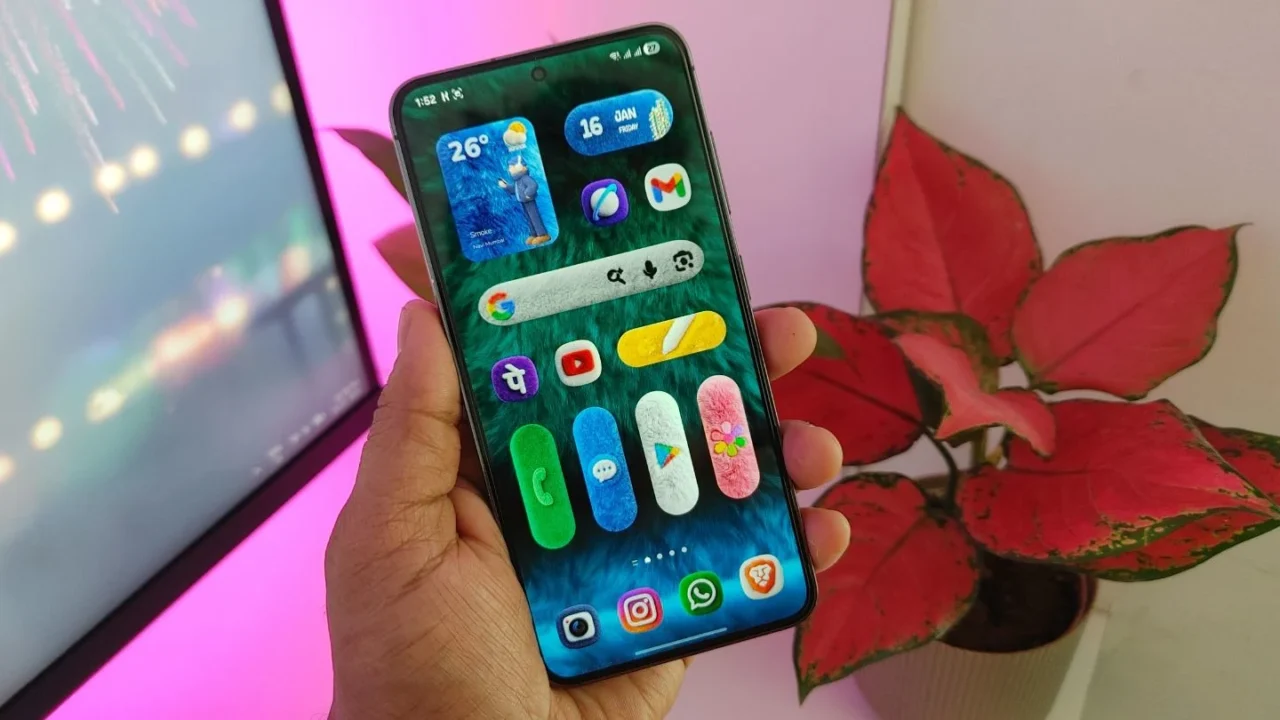
While scrolling through Instagram Reels, I recently stumbled upon a video showing a Samsung phone with fluffy-looking icons. I kid you not, it looked sick.
At that moment, I wasn’t actively looking to change my entire home screen, so I didn’t bother trying it on my Galaxy phone.
But as expected, Instagram’s algorithm quickly picked up on my interest and started flooding my feed with Fluffy icon reels — way more than I bargained for. Eventually, I gave in. I decided to give my One UI home screen a fluffy icon makeover and see for myself how it actually looks in real-world use.
To go all in, I also installed the Fluffy widget pack and paired it with a matching fluffy wallpaper to complete the theme.
Quick heads-up
Both the icon pack and the widget pack are paid apps. And they’re not exactly cheap either, especially the icon pack. For my American readers, spending $1 – $2 might sound reasonable. But in a price-sensitive market like India, paying around ₹150 for an icon pack is often considered expensive.
On top of that, I realized only after installing the Fluffy widget pack that it requires the Pro version of the KWGT app, which adds even more to the total cost.
That said, don’t be disappointed if you were planning to try Fluffy icons on your Galaxy or Android phone. There is a way to get them for free, and I’ll walk you through that later in the article.
My full experience with the Fluffy home screen setup
After applying the Fluffy icon pack, I was honestly surprised by how good my home screen looked. Yes, some apps don’t support the Fluffy icon style, but they still blend well with the rest of the icons. Also, thanks to the newer Theme Park features, I was able to add a 3D-style depth effect to unsupported icons, which helps everything feel more consistent overall.
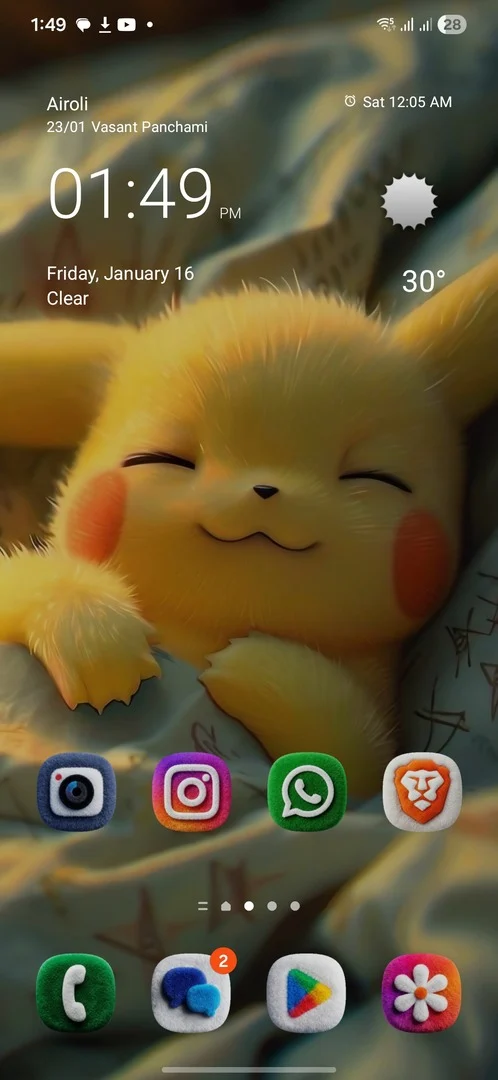
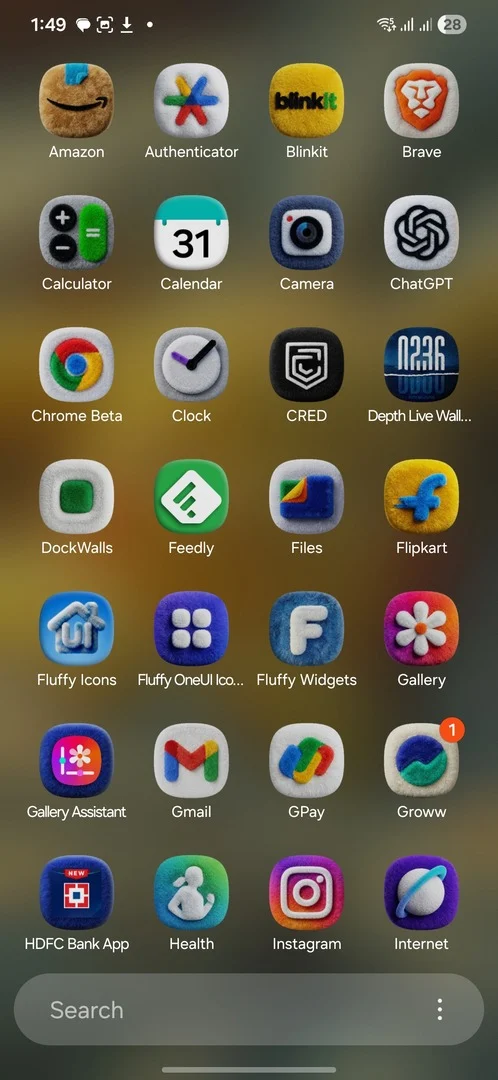
Next, I started adding Fluffy widgets to the home screen. And honestly, it was a pain. I’ve never been a big fan of KWGT because it demands a lot of manual tweaking and trial and error.
That’s exactly what happened here. I tried multiple widgets to find ones that actually fit my layout and didn’t look awkward. Some widgets didn’t work as expected, which meant diving into settings and adjusting things manually. All of this took way more time than I initially expected.
After hours of tweaking, testing, and a fair amount of frustration, I finally ended up with a setup I was reasonably happy with.
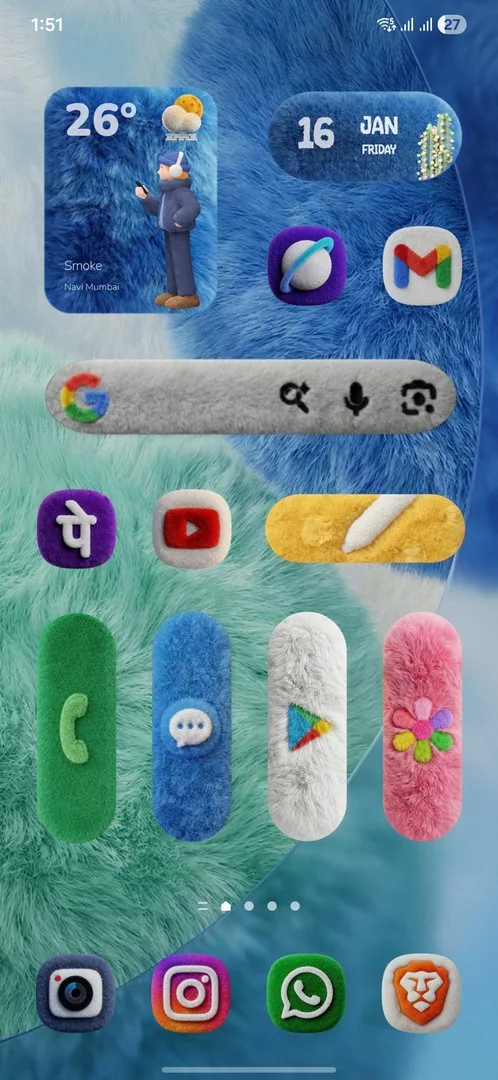
At first, I really liked the new vibe it brought to my home screen. It did take a few days for my muscle memory to adjust to the new icon placements, but once that settled, the setup started to feel natural.
Will I keep the Fluffy home screen setup?
I’ve been using this setup for about a week now. I’m enjoying the fresh look and don’t mind sticking with it for a while. That said, I do miss my old home screen, which was inspired by Nothing OS with a clean, monochrome, and minimal design.
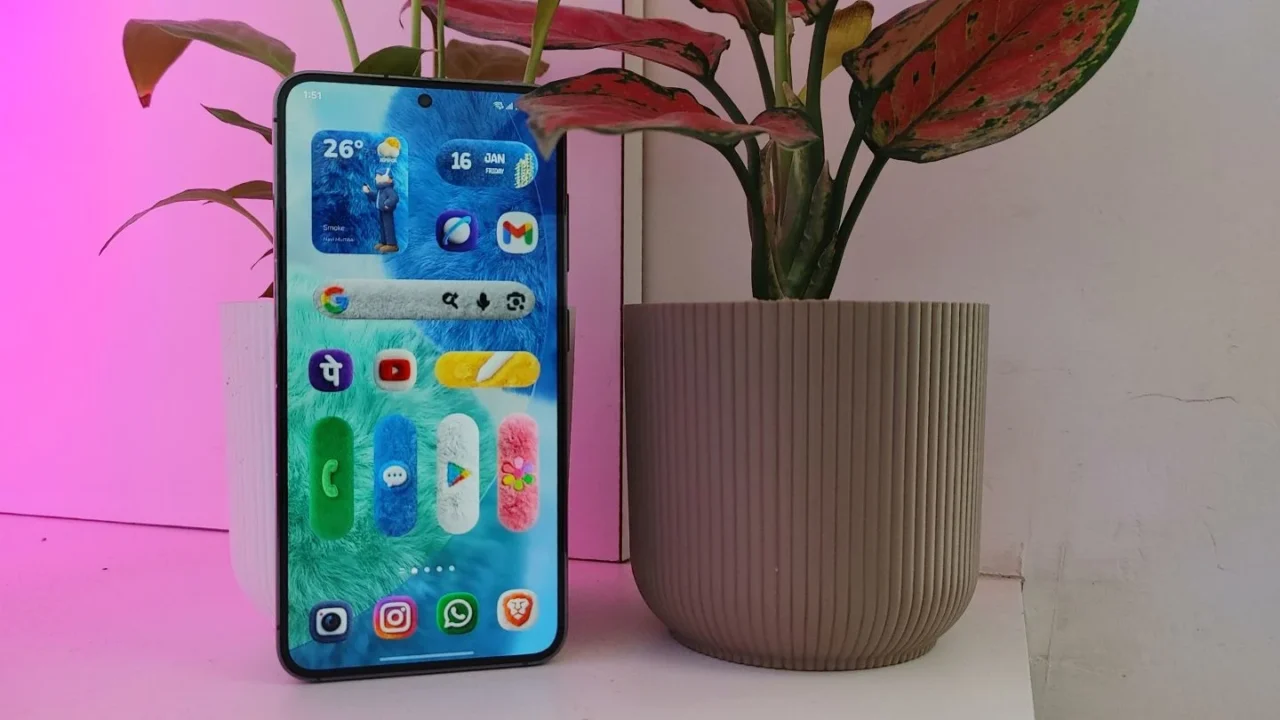
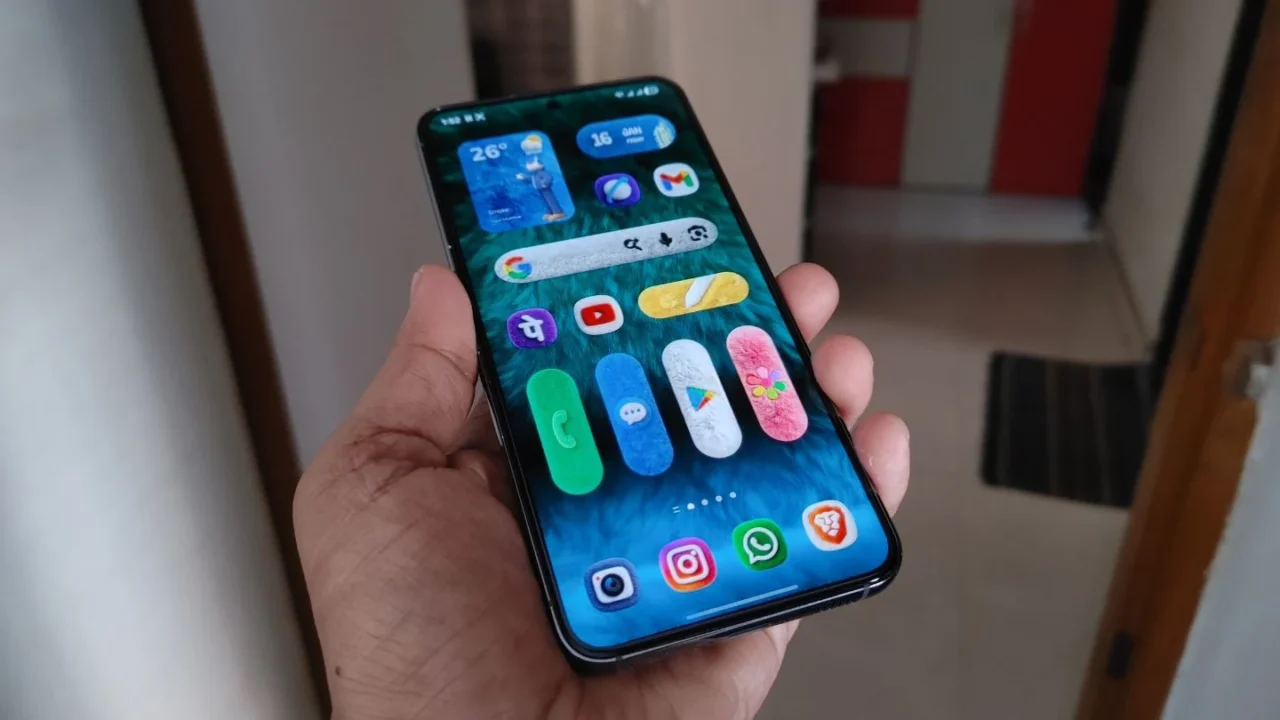
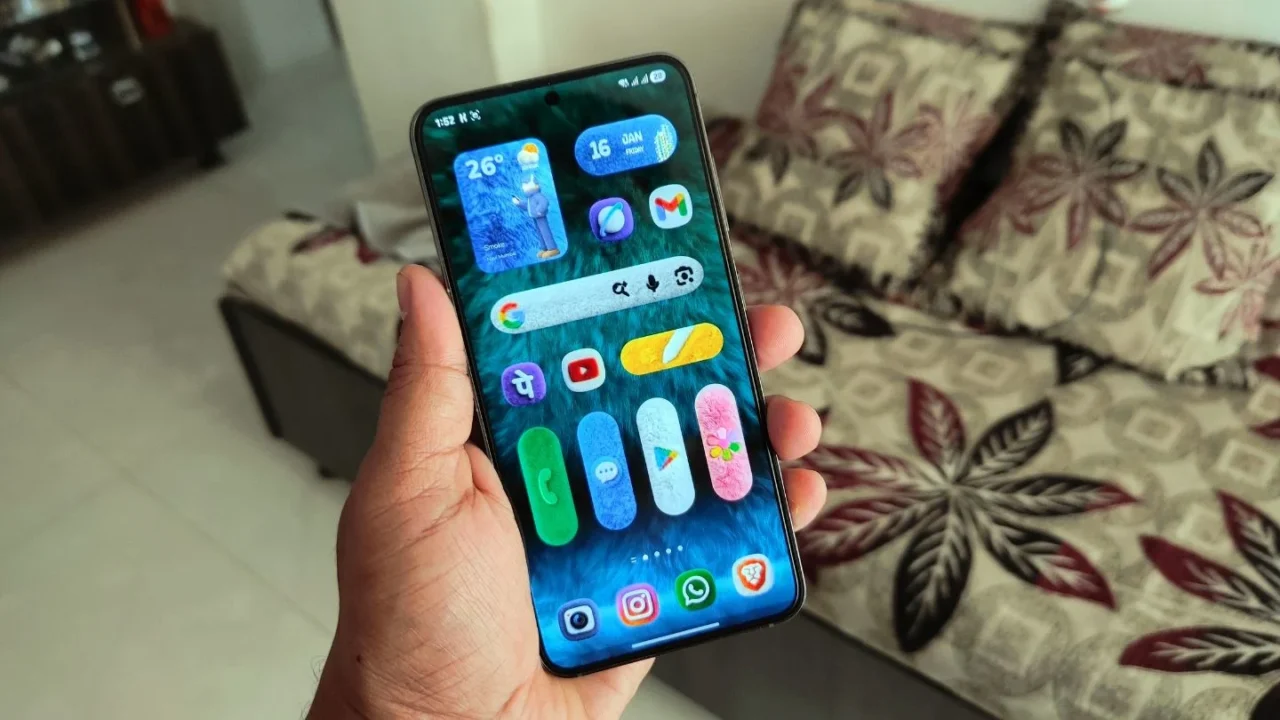
For now, I’ll continue using the Fluffy setup until I eventually get bored with it. I’m also hoping future updates bring wider app support for the Fluffy icon style, which would significantly improve the overall experience.
Free way to get the Fluffy icon pack
As I mentioned earlier, there is a free way to apply the Fluffy icon pack on your Galaxy or Android phone, as long as you’re okay with doing a bit of manual setup. Here’s the full process.
Step 1: Download and export the Fluffy icon pack
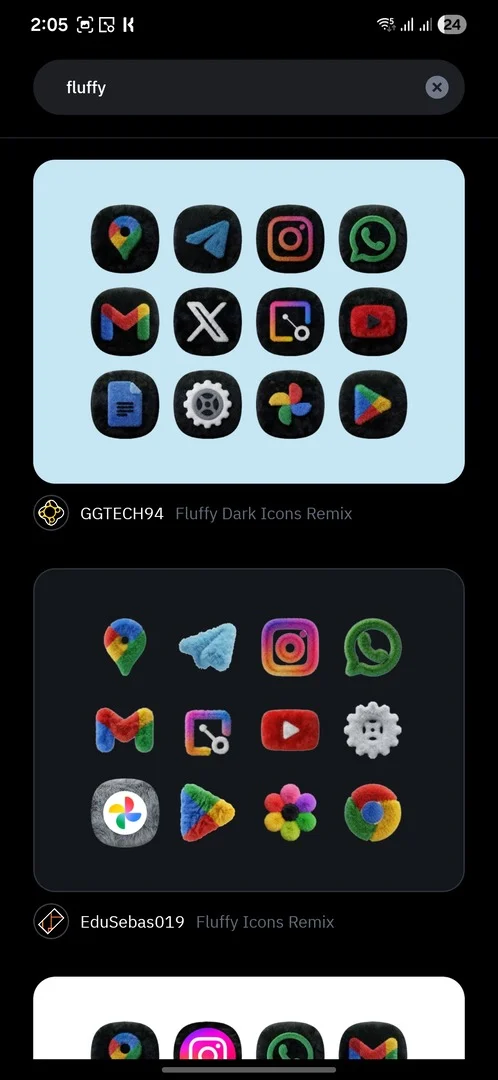
Start by downloading Icon Pack Studio from the Play Store. Once installed, open the app and search for “Fluffy” in the icon packs section. From the results, select the Fluffy icon pack and download it. Keep in mind that it includes both free and premium icon sets.
After downloading, go to the Library tab, select the Fluffy icon pack, and tap Apply. This will export the icon pack as an APK file. Once the export is complete, head to your Downloads folder and install the APK manually.
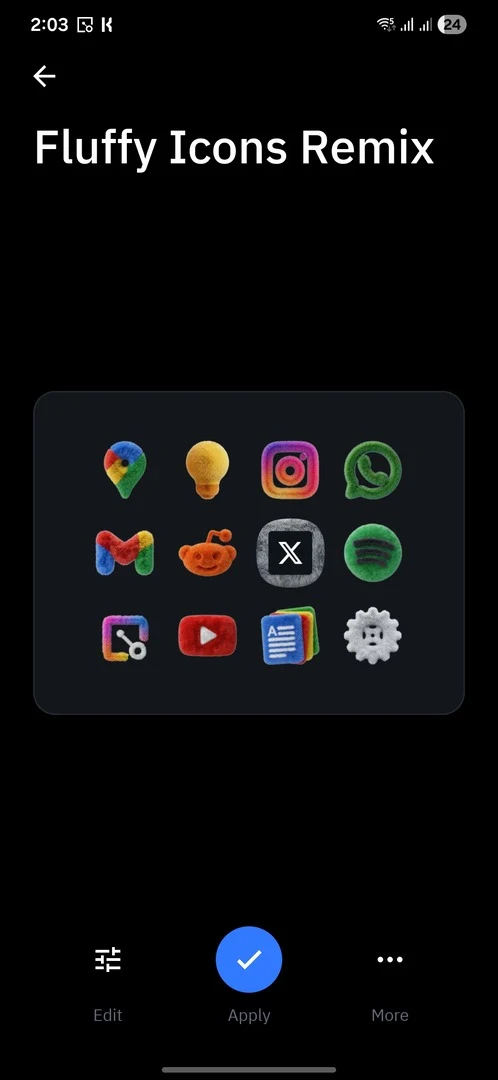
Step 2: Apply the Fluffy icon pack using Good Lock
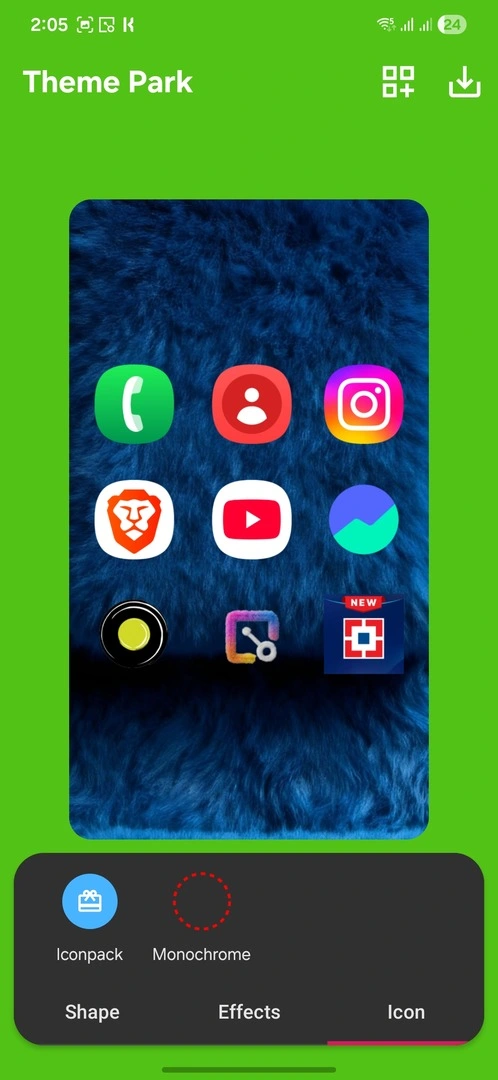
Next, download Good Lock from the Galaxy Store and open it. Install the Theme Park module.
Launch Theme Park, switch to the Icon tab, and tap Create New. Select Icon Pack, then choose the Fluffy icon pack you exported earlier. Tap Save in the top-right corner to create the theme.
Finally, select the newly created Fluffy icon theme and tap Apply. You should now see Fluffy icons applied across your home screen.
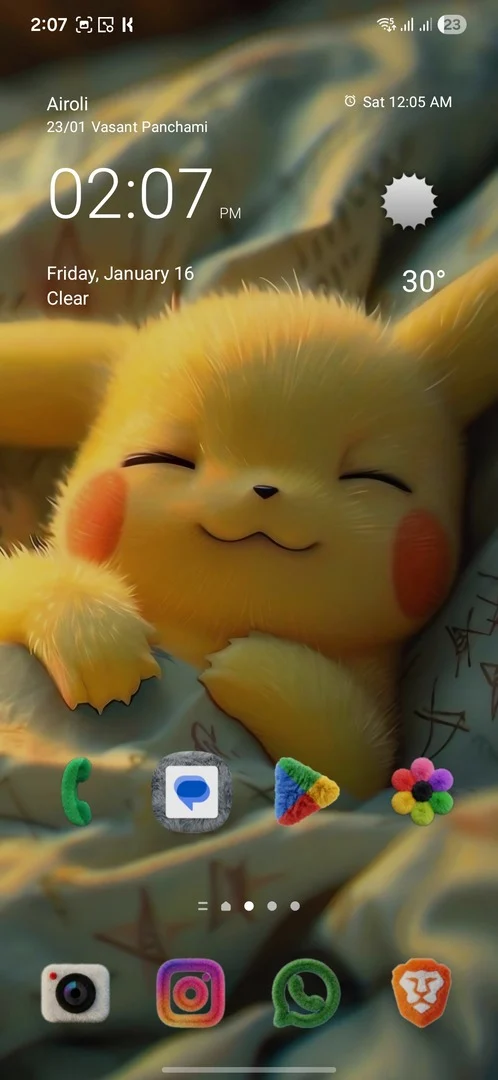
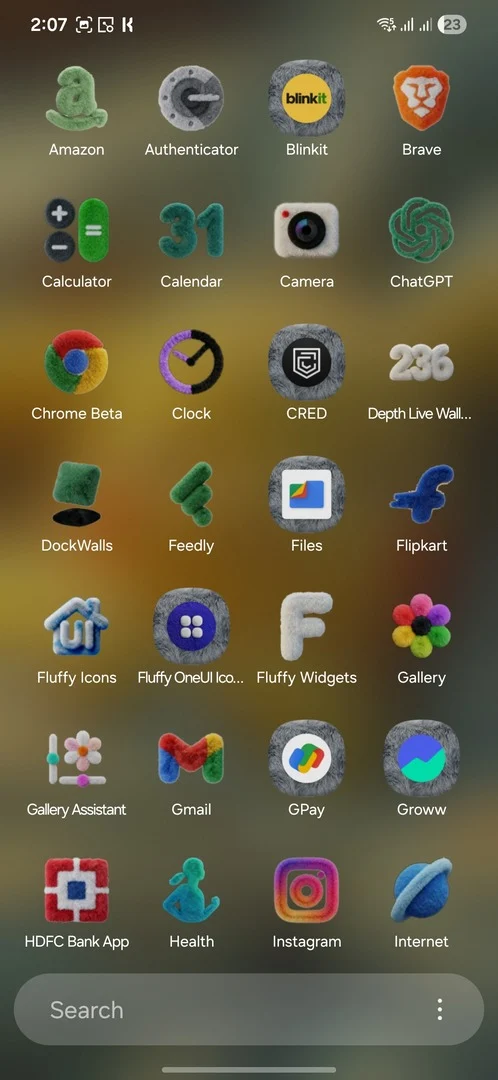
Wrapping up
The Fluffy icon and widget setup bring a playful and refreshing look to the home screen, but it does come with a learning curve and some extra effort. The pricing and manual tweaking won’t be for everyone, but if you enjoy customizing your phone, the end result can feel genuinely rewarding.
Have you tried the Fluffy icon or widget setup on your phone? Let me know how it went in the comments, and feel free to share this article with fellow Android customization fans.