

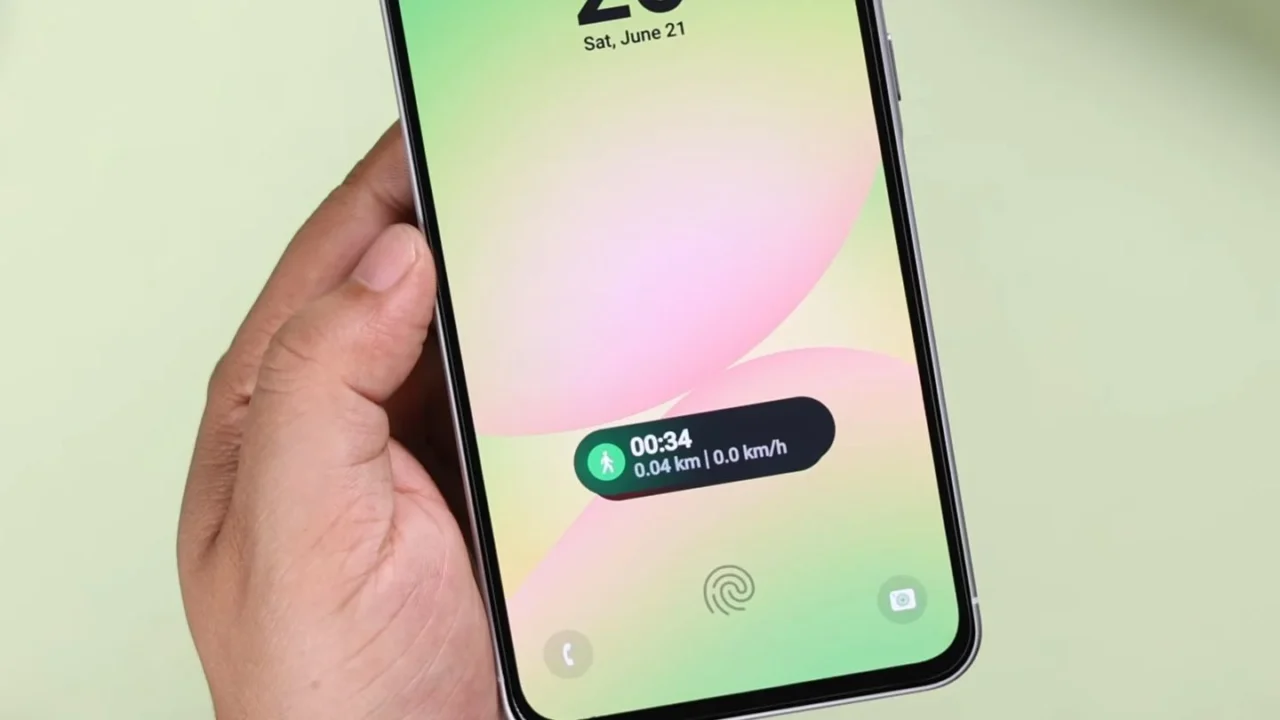
Samsung introduced the Now Bar with the Android 15-based One UI 7 update, and at first glance, it feels like a genuinely useful addition. I mainly use it to control music and view the live timer. There’s not a single day that Now Bar’s live activities caused any inconvenience to me.
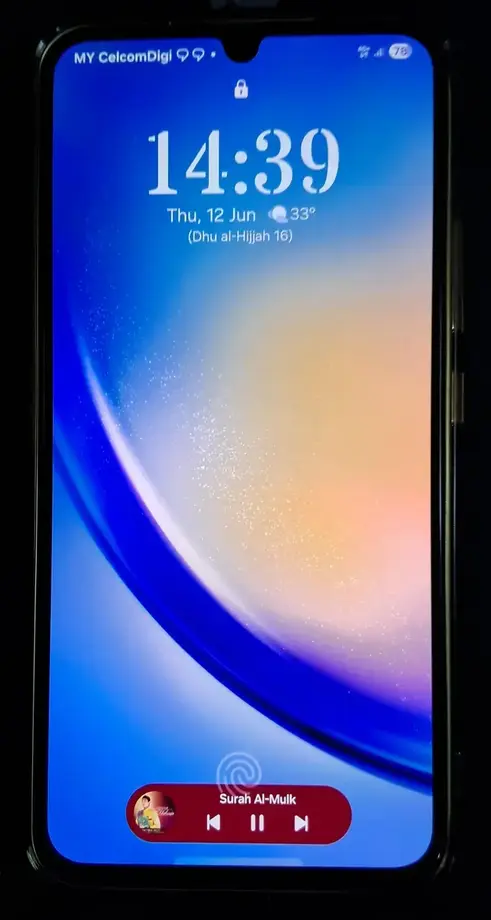
I always assumed that, like me, most users would have a similar experience with the Now Bar. But I was wrong. On certain Samsung Galaxy models, the Now Bar sits above the under-display fingerprint sensor, which not only looks odd but also wastes a lot of screen space.
When I first came across users complaining about this on social media, I agreed with them. The placement did feel off. After all, the Now Bar is clearly designed to sit at the bottom of the lock screen. At first, I could not understand why Samsung chose to position it differently on certain devices, so I decided to dig deeper.
So, what’s the reason behind it?
If your Galaxy phone uses an in-display ultrasonic fingerprint sensor or a side-mounted fingerprint scanner, the Now Bar appears perfectly placed at the bottom of the screen.
However, many mid-range and budget Galaxy A and Galaxy M series phones, such as the Galaxy A36 or Galaxy M56, come with under-display optical fingerprint scanners. These scanners are positioned very close to the bottom of the screen and would overlap with the default location of the Now Bar. To avoid this conflict, Samsung pushes the Now Bar higher up on the lock screen.
Thankfully, Samsung does allow users to disable the Now Bar entirely, which is helpful for those who dislike its placement from a design or usability standpoint. You can disable it by heading to Settings > Lock Screen and AOD > Now bar.
That said, I use the Now Bar quite often and know how convenient it can be. Chances are, many of you reading this feel the same way and do not want such a useful feature to go unused just because of its awkward positioning.
So, what solution did I find?
After understanding the reason behind the placement, I started looking for ways to move the Now Bar back to the bottom of the screen. One commonly suggested solution is to disable the fingerprint sensor and enable face unlock on your Galaxy phone. Doing this immediately places the Now Bar at the bottom of the lock screen.
This method does work, but it raises an obvious concern. What about overall phone security? Most users would not want to compromise security just for a visual tweak. Right?
So, what’s the better alternative?
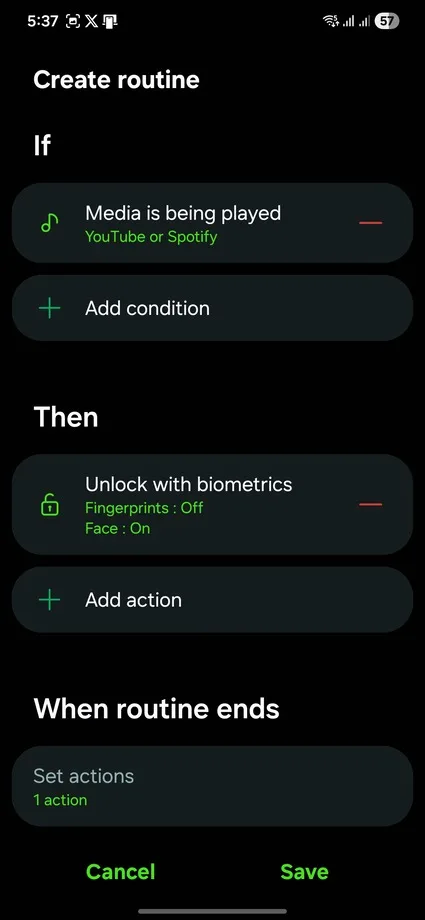
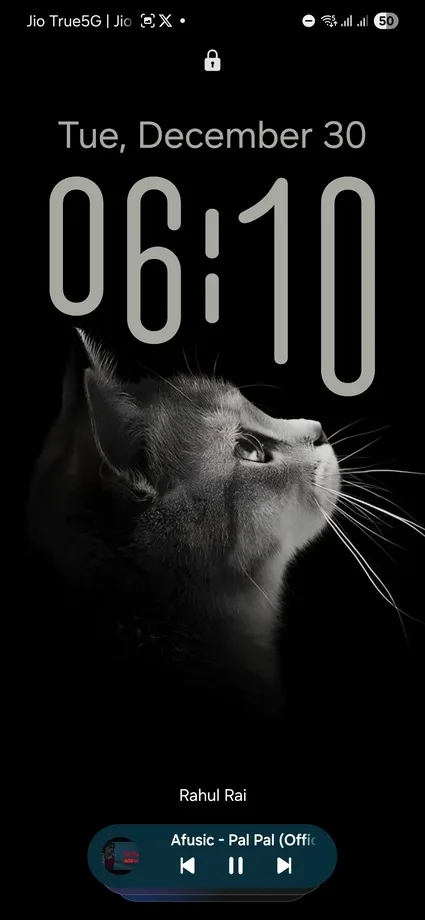
You can use Samsung’s Modes and Routines feature. With this, you can create a routine that temporarily disables the fingerprint scanner and enables face unlock only when music is playing. As a result, the Now Bar appears at the bottom of the lock screen during music playback. Once the Now Bar becomes inactive, your phone returns to normal, and you can unlock it using the fingerprint scanner again.
Unfortunately, Modes and Routines currently don’t allow you to set other Now Bar-supported activities, such as timers, Do Not Disturb, or the stopwatch, as conditions.
If you are comfortable with this approach, here’s how to set it up step by step:
- Open the Modes and Routines app and tap the plus icon under the Routines section.
- Under the “If” condition, select “Media is being played.”
- Choose the media apps you use and tap Done.
- Under the “Then” condition, go to Lock screen and AOD > Unlock with biometrics, then disable Fingerprints and enable Face unlock.
- Tap Save.
Now, whenever you play music in the background, the Now Bar will appear at the bottom of the lock screen.
While this may not be a perfect solution for every use case, it shows that the placement issue is less of a bug and more of a design compromise made for certain hardware limitations. Hopefully, Samsung adds more flexibility in a future One UI update. Until then, this solution strikes a good balance between usability, security, and convenience.
Before you go, let me know in the comments what you mainly use the Now Bar for on your Samsung phone.